A free Nomva walkthrough

Check the serving. Then log the food.

Two search results can show different calories because they describe different amounts. Here is how to choose a food, review its serving, and see your day update in Nomva on iPhone.

Manual food search and barcode logging are free. The App Store shows your local Nomva Pro price.

From search to daily total

Step 1

Read the amount beside each result.

In this sample search, the previously logged banana is one medium fruit at 105 calories. The separate catalog result is one cup of raw banana at 146 calories. Pick the entry and amount that match what you ate; the two numbers are not interchangeable.
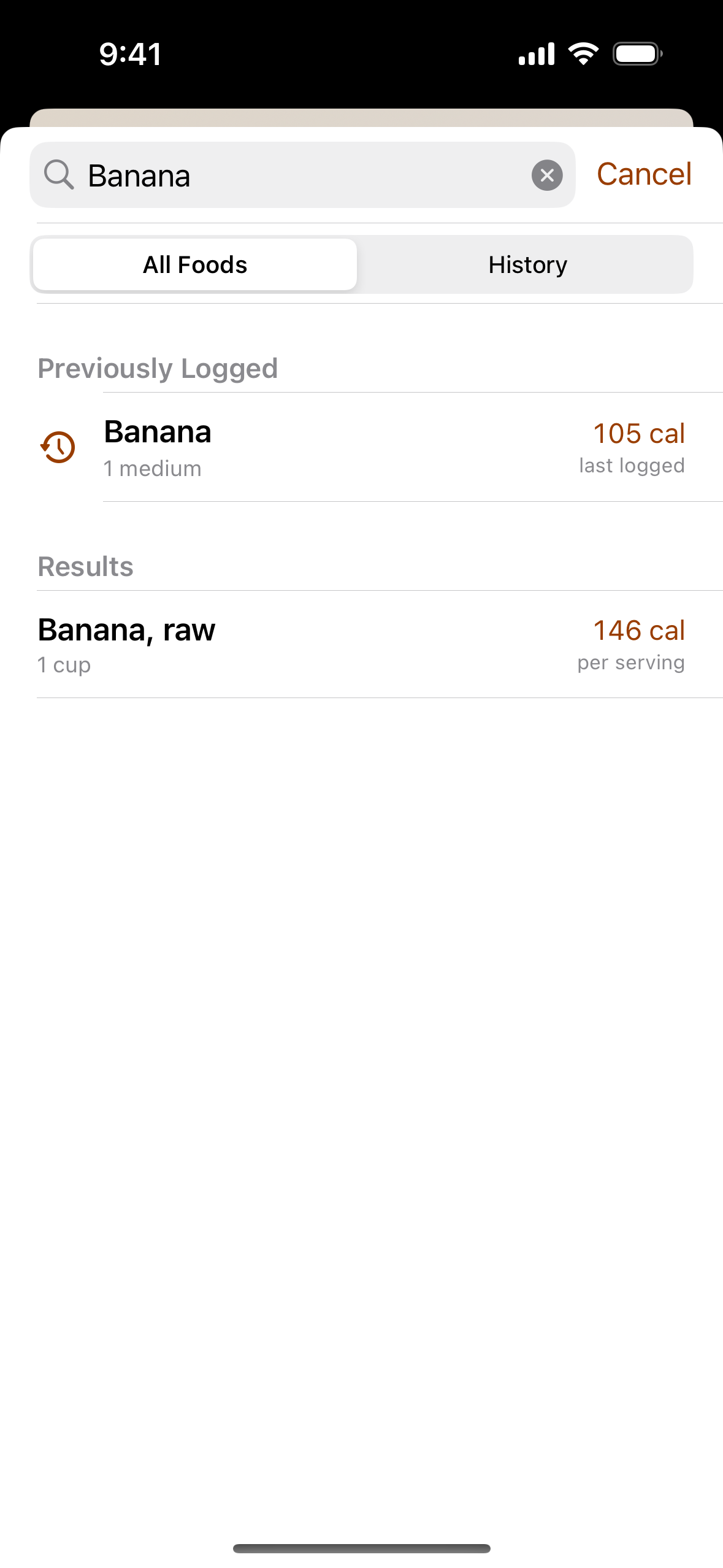
Nomva search for Banana: a previously logged one-medium banana shows 105 calories, and a separate one-cup raw banana result shows 146 calories.
Actual 1.8.2 app screen with fictional sample history.
Step 2

Review the serving before you tap Log It.

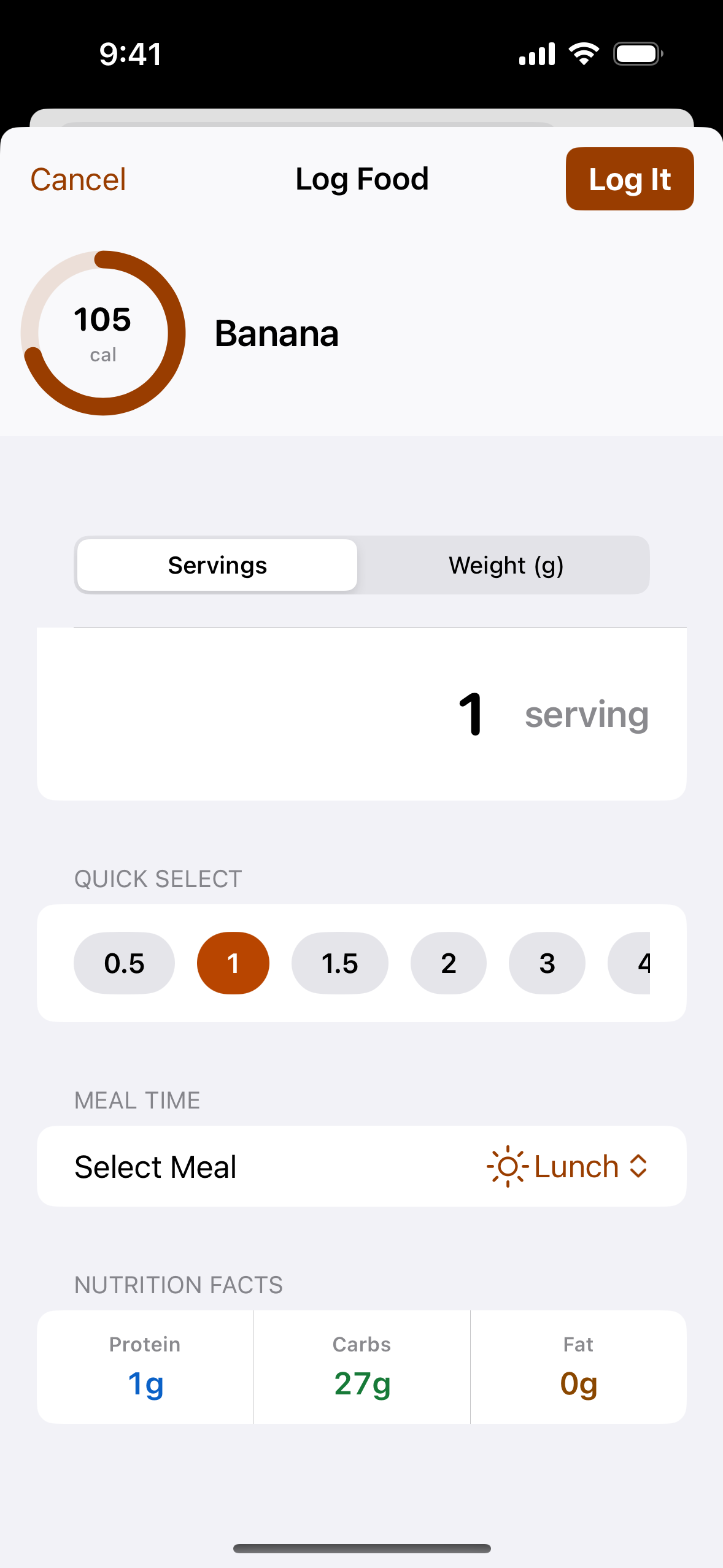
Nomva shows the food, calorie estimate, serving count, weight option, meal time, and macros before saving. In the sample, one serving of the previously logged banana is assigned to Lunch. Adjust the amount if your portion differs.

Nomva Log Food screen for a banana with one serving selected, Lunch as the meal, and a 105-calorie estimate before Log It.
The serving review is part of the free manual flow.
Step 3

Check the updated day.

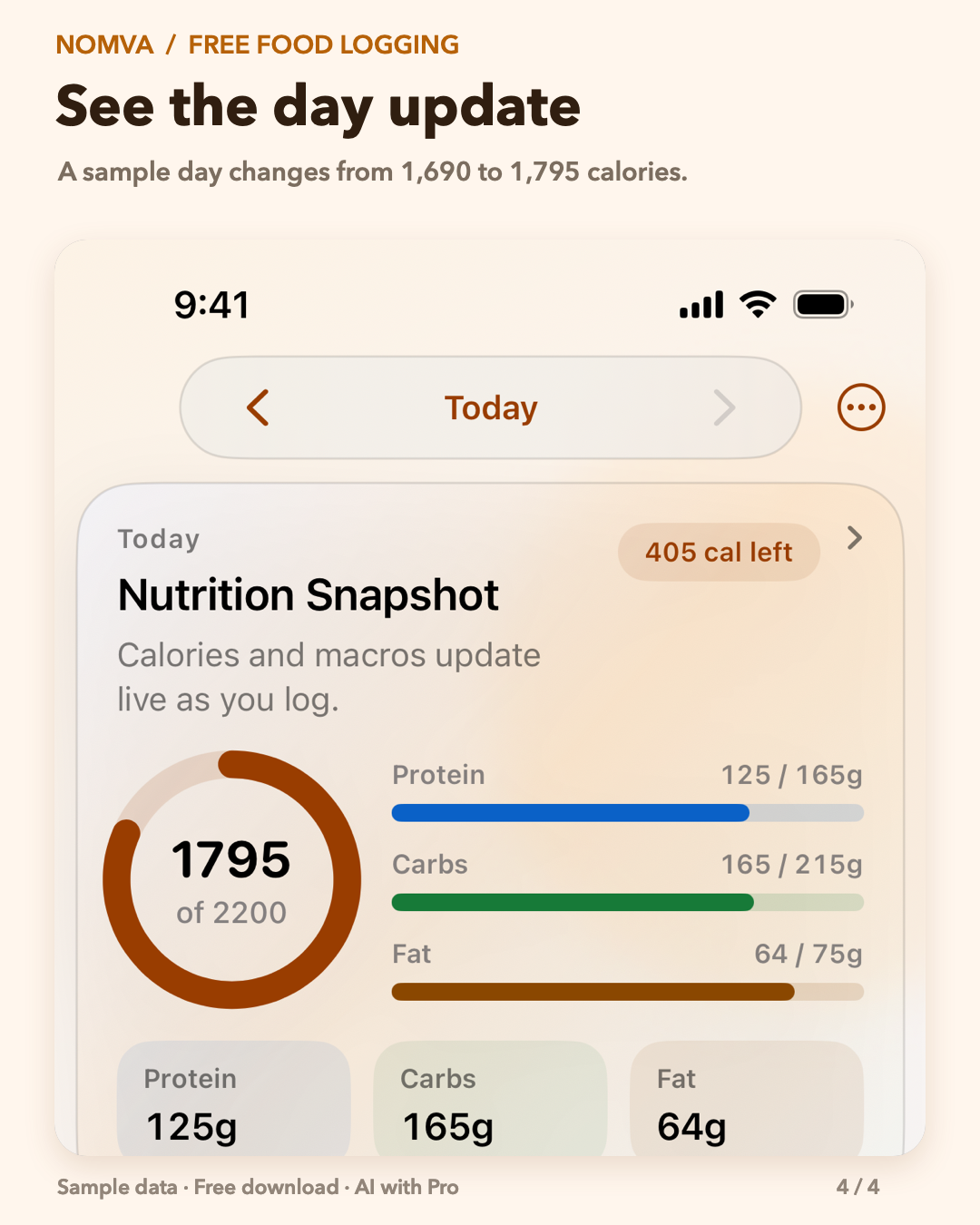
After logging the sample banana, Nomva adds it to Lunch and shows the day moving from 1,690 to 1,795 calories. The 2,200-calorie target belongs to this fictional sample; it is not a recommendation. Food records and nutrition estimates can be incomplete or inaccurate, so review what you save.

Nomva sample day after the banana log, showing 1,795 of 2,200 calories and updated daily macros.
Fictional sample day captured in Nomva 1.8.2.

Try the free flow with your own meal.

Search a familiar food, check the amount, and watch the day update. If a result or serving is confusing, tell us what happened.